App Store Connect API
Learn how to create and configure App Store Connect API credentials to connect your iOS app with Forvibe.
To manage your iOS app listings from Forvibe, you need to create an API key in App Store Connect. This guide will walk you through the process of generating the necessary credentials.
Prefer not to click through Apple's dashboard? The Forvibe Chrome Extension automates every step below - it creates the API key and captures the .p8 file for you. See the Chrome Extension auto-import guide.
You need to have Admin or App Manager role in your Apple Developer account to create API keys.
Prerequisites
- An active Apple Developer Program membership
- An app already created in App Store Connect
- Admin or App Manager role in your team
Step 1: Navigate to App Store Connect API Keys Page
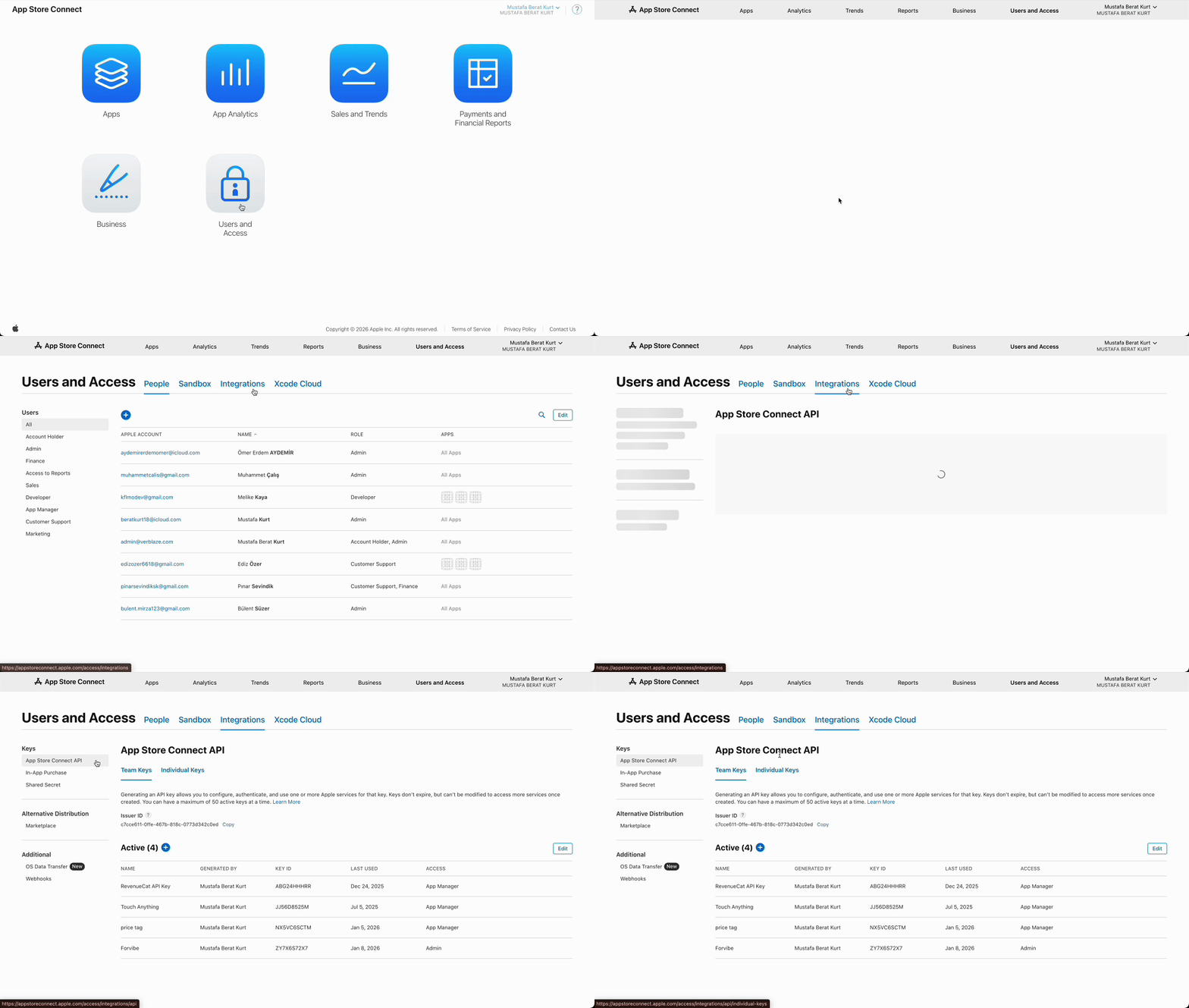
Open App Store Connect
Go to App Store Connect and sign in with your Apple ID.
https://appstoreconnect.apple.comGo to Users and Access
Click on "Users and Access" in the left sidebar.
Navigate to API Keys
Click on the "Integrations" tab at the top of the page, then select "App Store Connect API" from the sidebar.
If this is your first time using the API, you may need to click "Request Access" and agree to the terms and conditions.
Step 2: Create and Download API Key
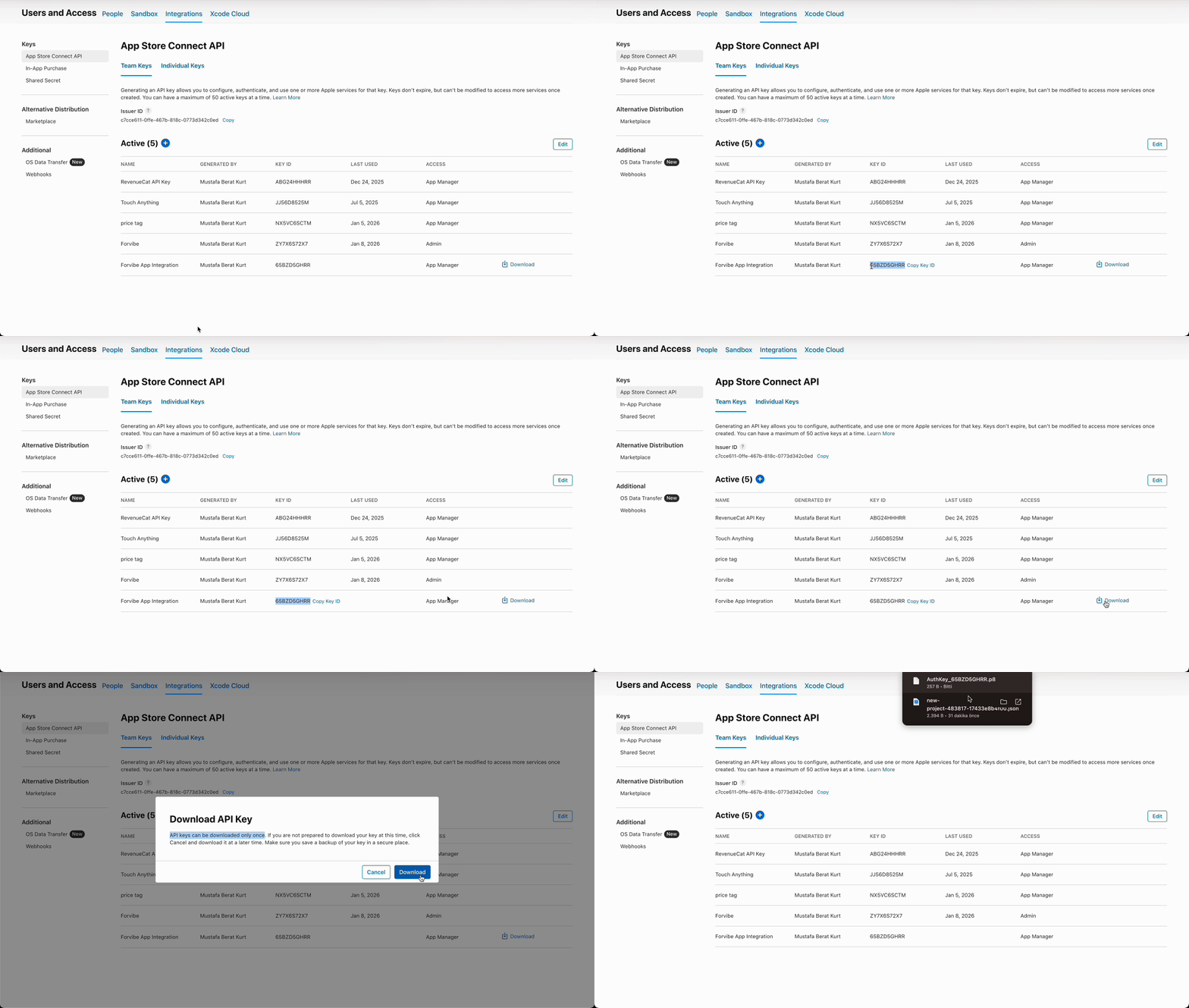
Generate API Key
Click the "+" button or "Generate API Key" button to create a new key.
Configure the key
Enter a descriptive name for your key (e.g., "Forvibe Integration") and select the access level:
- App Manager - Recommended (can manage app metadata and listings)
- Developer - Limited metadata access
- Admin - Full access (use only if needed)
We recommend using "App Manager" access level for Forvibe integration. This provides the necessary permissions for managing store listings without excessive privileges.
Generate and download
Click "Generate" to create your API key, then immediately click "Download API Key" to download the .p8 file.
You can only download the private key ONCE. Make sure to download and store it securely. If you lose it, you'll need to create a new key.
Note Key ID and Issuer ID
After downloading, note down the following information from the API Keys page:
- Key ID: Shown in the keys table (e.g., "ABC123DEFG")
- Issuer ID: Displayed at the top of the page above the keys list (e.g., "12345678-1234-1234-1234-123456789012")
Get your Bundle ID
Navigate to "My Apps", select your app, and go to "App Information" in the sidebar. Your Bundle ID is displayed at the top (e.g., "com.yourcompany.yourapp").
Step 3: Connect in Forvibe
Now that you have all the required credentials, let's connect them to Forvibe.
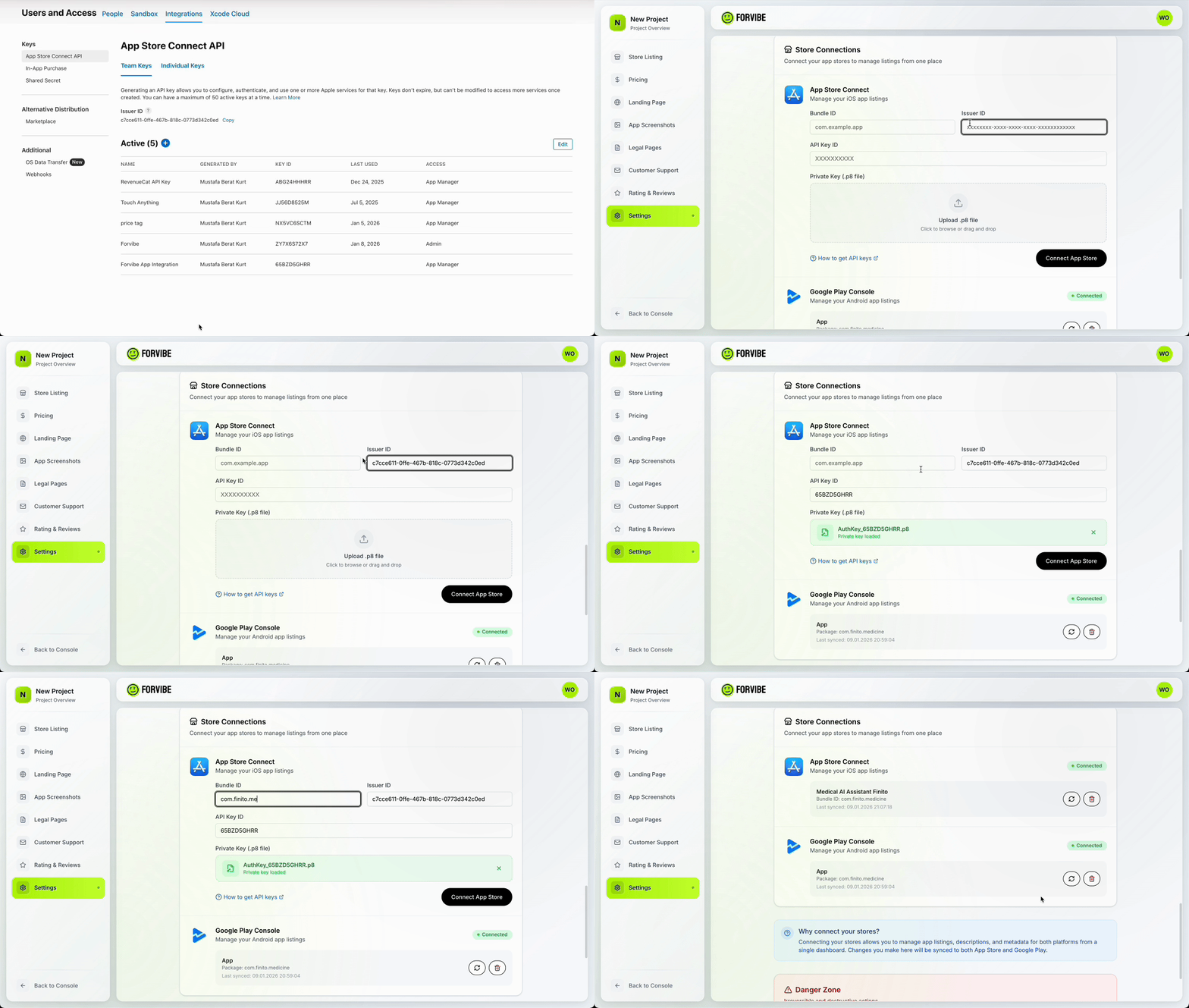
Go to Project Settings
In Forvibe, navigate to your project and click on Settings.
Find App Store Connect section
Scroll down to "Store Connections" and find "App Store Connect".
Enter credentials
Fill in the following fields with the information you collected in Step 2:
- Bundle ID: Your app's bundle identifier (e.g., com.yourcompany.yourapp)
- API Key ID: The 10-character Key ID from the keys table
- Issuer ID: The UUID-format Issuer ID from the top of the API Keys page
Upload .p8 key file
Click "Upload .p8 file" and select the private key file you downloaded earlier.
Test connection
Click "Connect" to verify your credentials. You should see a success message if everything is configured correctly.
Your App Store Connect is now linked to Forvibe! You can manage your app listings, view reviews, and sync metadata from the Store Listings page.
Troubleshooting
Invalid API Key error
Make sure you're using the correct Key ID and that it matches the .p8 file you uploaded. The Key ID should be 10 characters.
Permission denied
Your API key may not have sufficient permissions. Verify that the key has "App Manager" or higher access level.
App not found
Double-check that the Bundle ID is correct and matches exactly what's shown in App Store Connect. Bundle IDs are case-sensitive.
Key expired
App Store Connect API keys don't expire by default. If you're having issues, check if the key is still active in your App Store Connect account.
Need more help? Check our troubleshooting guide or contact support at support@forvibe.dev.